How to Reset the Administrator Password in Windows 10

 Are you unable to sign in to your Windows administrator account because you forgot what the password was? Let’s face it, we all struggle with these kinds of problematic situations at least once in our life. We all own so many accounts these days that sometimes it becomes pretty difficult to remember all the information.

And losing any website password might not be a big deal because we can recover them using the respective email addresses. But forgetting our device’s password can be pretty scary and frustrating. Losing your computer’s login password means you cannot access your important data stored on the device.

And there is also a chance that you lose everything saved on your computer. And obviously, no one would want that. So, do you know how you can recover a Windows 10 computer administrator account password?

Have you also forgotten your Windows 10 administrator account password and are now facing issues with resetting it? If that is the situation, you don’t need to worry now. You can easily reset the administrator password on your Windows 10 computer. To know the way to perform this task, you are advised to go through this entire post.

Here, we will provide you the method, following which you can reset your Windows 10 computer admin password with much ease. So, read this whole post to get to the technique.

Resetting the Administrator Password on a Windows 10 Computer

Restoring a Windows computer password can indeed be annoying for anyone, but at least it’s possible. There are multiple methods following which you can reset the administrator password on your Windows 10 computer with much ease.

Here, we will provide you with the three most straightforward techniques that include some simple steps to follow. You can reset the Windows administrator password with the Microsoft account. Or you can use the password reset disk for this purpose.

So, without any more wait, let’s see the methods you need to follow to reset your Windows 10 computer administrator password.

Method 1: Resetting the Admin Password on Windows 10 Using the Password Reset Disk

A password reset disk is a device (USB or CD) that allows you to re-access your computer if you have forgotten or lost the admin password. It is the simplest method that anyone can follow. So, here’s how you can reset the admin password using the password reset disk on a Windows 10 computer:

  • You will have to start the task by inserting the password reset disk in your Windows 10 CD drive.
  • When the sign-in screen shows up, you will need to enter any password that you remember. And then, click on the “Reset Password” option.
  • After this, you will be able to see the password reset wizard on your computer screen. Proceed further by selecting the reset disk, which is either your USB or CD.
  • And then, click on the “Next” button. You will now have to enter the new password in the provided text field. Confirm the password by re-entering it.
  • Lastly, go to the “Next” button placed at the bottom of the screen. And then click on the “Finish” option to complete the process.
  • And that’s it. Now you have successfully changed the Admin password on your Windows 10 computer.

Method 2: Resetting the Admin Password on Windows 10 by Accessing Microsoft Account

Here is the second method that you can follow to reset the admin passed on your Windows 10 computer. Follow the instructions mentioned below:

  • Firstly, you will have to navigate to the Microsoft Account reset page.
  • On reaching the next screen, you will be asked to enter your email address or phone number.
  • Proceed further by verifying your details, and then you will need to enter the new password for your Microsoft account.
  • At last, you will have to click on the “Next” button. Then sign in to your account to re-access your Windows 10 computer. That’s all.

Method 3: Reset the Windows 10 Admin Password by Enabling the Safe Mode

You can also reset the admin password on your Windows 10 computer by enabling the safe mode. Here’s how to do so:

  • First, press the power button on your computer. And then, click on the Restart button on the locked Windows 10 login screen. You will have to hold the “Shift” key while clicking on the Restart button.
  • Now, choose the option of “Troubleshoot” and then click on “Advanced Options>Startup Settings.”
  • Click on the “Restart” button again and press F4/F5/F6, after which your computer will go into safe mode.
  • At last, run the Command Prompt as an administrator. And then reset the admin password with command lines.
  • And that’s all you will have to do to reset the administrator password on your Windows 10 computer.

So, these are the three easy methods that you can use to change the admin password on your Windows 10 computer. Try the technique when you need to reset the password. And to get more information like this, take a tour of our official website.

Source:https://ijijstartcanonn.com/how-to-reset-the-administrator-password-in-windows-10/


Learn to Complete Installation of Webroot SecureAnywhere

 Webroot SecureAnywhere Antivirus gives security against spyware, viruses, and other online threats without lagging the system performance or interrupting the normal operations while using the Mac and PC. Its scan and threat elimination features assure that malware is erased. SecureAnywhere provides you the freedom to surf, share, shop, and bank online – all with the confidence that the system and identity are secure by shielding the usernames, account numbers, security codes, and other personal data. SecureAnywhere Antivirus also guards Kindles, Android tablets, and smartphones. If the Android smartphone gets stolen or lost, you can remotely lock or wipe the mobile using the Lost Device Protection function on the Webroot site. To download, install and activate Webroot SecureAnywhere, you want to visit webroot.com/secure.

Process of Uninstall Webroot Antivirus from the PC

To uninstall the Webroot antivirus from the PC, pursue these on-screen instructions provided below:

  1. At first, you require to find Control Panel on the PC.
  2. After that, choose the installed apps list.
  3. You should reach Webroot SecureAnywhere.
  4. Once you find it, right-click on it, then pick the Uninstall button.
  5. Now, you have to wait as the software gets deleted from the PC.

Process of Download the Webroot SecureAnywhere from the System

To download the Webroot SecureAnywhere from the system, pursue these on-screen instructions provided below:

  1. Firstly, you require to go to the ‘webroot.com/secure’ link.
  2. You should input an email ID you utilize alongside the product code.
  3. Thereafter, hit the Next button.
  4. Afterward, give the sign-in information you have an accessible account of Webroot SecureAnywhere.
  5. You have to make a fresh one if you don’t own a similar one.
  6. Then choose any Webroot item your preference.
  7. After that, pick a package of subscription you locate suitably.
  8. Now, the file of setup will be downloaded through the official site.

Process of Installation of Webroot SecureAnywhere on Windows

To install the Webroot SecureAnywhere on Windows, pursue these on-screen instructions provided below:

  1. First and foremost, find the setup file from the folder of Downloads.
  2. Then twice click on the wsainstall.exe file.
  3. After that, insert the distinct code if asked.
  4. You should pursue the appeared steps to install the program.
  5. Finally, click on the Finish button once you have done it.

Process of Installation of Webroot SecureAnywhere on Mac

To install the Webroot SecureAnywhere on Mac, pursue these on-screen instructions provided below:

  1. You should go to the wsamac.dmg doc and twice click on it.
  2. Then you will get a Webroot Internet Security icon, twice click on it.
  3. Once asked, give the unique character code.
  4. Finally, pursue the showing instructions to complete the installation procedure.

Process of Installation of Webroot SecureAnywhere on Android Device

To install the Webroot SecureAnywhere on an Android device, pursue these on-screen instructions provided below:

  1. At first, launch the Google Play Store on your device.
  2. Then find the ‘Webroot Mobile Security & Antivirus’ by inputting in the search bar.
  3. Once you get it, click on the Install button.
  4. You should select the ‘Open’ button once you download the files correctly.
  5. Now, read the license agreement carefully and accept it in sort to set up the program.
  6. After doing that, hit the Activate button.
  7. Later, insert the 25-character unique code.
  8. In case you see a “fix now’ option that it may notify existing bugs.
  9. Finally, go via the on-screen steps to delete them.

Process of Installation of Webroot SecureAnywhere on iOS Device

To install the Webroot SecureAnywhere on an iOS device, pursue these on-screen instructions provided below:

  1. At first, run the App Store app on your iOS device.
  2. Thereafter, browse the Webroot SecureWeb Browser.
  3. Once you get it, install it to protect the device.

Process of Webroot SecureAnywhere Activation on Windows

To activate the Webroot SecureAnywhere on Windows, pursue these on-screen instructions provided below:

  1. Firstly, run the app and go to the My Account tab, then select it.
  2. After that, reach the right side of the Accounts screen.
  3. On the pop-up area, input the product code.
  4. Finally, hit the Activate button.

Process of Webroot SecureAnywhere Activation on Mac

To activate the Webroot SecureAnywhere on Mac, pursue these on-screen instructions provided below:

  1. Launch the software of Webroot SecureAnywhere on your Mac.
  2. Then select the icon of software and choose the ‘Open Webroot SecureAnywhere’ over the menu.
  3. Go to the menu and click on the My Account tab.
  4. Later, pick the ‘Activate a New Keycode’ option beneath the ‘My Account section.
  5. Now, insert the 25-character distinct code and hit the Activate button.

Source:https://webrootcomsafe.entertvlink.com/learn-to-complete-installation-of-webroot-secureanywhere/

How to Fix the Nvidia Control Panel Not Working?

 Suppose you are getting a new Nvidia GeForce graphics card and encountering some issues while using it. In that case, there are some reasons behind this issue, such as damaged drivers, aggressive antivirus, or damage Windows registry entries. Users are reporting that when they are trying to launch it, it is not responding. If you wish to repair it, follow this whole blog.

Turn off Related Processes through the Task Manager

To turn off the related process through the Task Manager, follow these on-screen step by step directions provided below:

  1. First and foremost, use the ‘Ctrl + Shift + Esc’ hotkeys over the keyboard to launch the Task Manager.
  2. Once it’s opened, click on the ‘More details’ option at the bottom left side of the screen.
  3. After that, locate the ‘NVIDIA Control Panel’ application task.
  4. Once you get it, right-click on it and choose the End Task option.
  5. You should move down and locate the ‘Nvidia Container’ processes.
  6. Once you see it, shut it down.
  7. Finally, attempt to start the application again and check whether the issue is fixed.

Reinstall the Nvidia Drivers

To reinstall the Nvidia drivers, follow these on-screen step by step directions provided below:

  1. Navigate to the Windows icon on the system.
  2. Thereafter, right-click on it and choose the ‘Device Manager’ option.
  3. You should extend the section of the ‘Display adapters’ option.
  4. Go to the GPU option, and right-click on it, then hit the ‘Uninstall device’ option.
  5. Once a prompt appeared, check the ‘Delete the driver software for this device from your system’ option.
  6. You should reach the Uninstall button and click on it.
  7. Now, restart the system.

Fix and Reset the Nvidia Control Panel Application

To fix and reset the Nvidia Control Panel Application, follow these on-screen step by step directions provided below:

  1. First and foremost, reach the Windows logo at the bottom left of the screen on your system.
  2. After that, right-click on it, then choose the ‘Apps and Features’ option.
  3. You should move down until you get the ‘Nvidia Control Panel’ option and then click on it.
  4. Go to the ‘Advanced options’ button and hit on it.
  5. You have to locate the Reset button and then click on the Repair button.
  6. Then, wait until complete the repair process and check whether it worked.
  7. Otherwise, return to the application’s settings and hit the Reset button to reset it.

Uninstall the Application and Download it via MS Store

To uninstall the application and download it via MS Store, follow these on-screen step by step directions provided below:

  1. Once again, go to the Windows logo on the lower left side of the PC.
  2. Then, right-click on it and click on the ‘Apps and Features’ option.
  3. You should locate the ‘Nvidia Control Panel’ option and hit the Uninstall button.
  4. Later, once again, hit the Uninstall button to verify.
  5. Now, go to the MS Store and install the application there.

Check the Services of Nvidia

To check the services of Nvidia, follow these on-screen step by step directions provided below:

  1. Use Win and S buttons simultaneously over the keyboard to launch the search bar.
  2. Once it opens, input ‘Services’ into it and hit the Enter button to invoke the Services screen.
  3. Thereafter, locate the ‘Nvidia Display Container LS service’ entry in the list.
  4. Once you get it, right-click on it, then choose the Properties option.
  5. Underneath the ‘Startup type’ section, hit the pull-down menu and click on the ‘Automatic’ option.
  6. Later, click on the Start and Apply button.
  7. Now, hit the OK button to apply the changes.
  8. Finally, redo the exact with further Nvidia services ‘NVIDIA LocalSystem Container’ and ‘Nvidia FrameView SDK.’
  9. In case these services are already set to automatic and are performing, right-click on every service, then choose the Restart option.

Source:https://printerijcanon.com/how-to-fix-the-nvidia-control-panel-not-working/

How to Fix No Sound Issues on Netflix?

 Several Netflix users are complaining that they are facing sound issues while watching anything on the system. There are some reasons behind this issue, such as Windows audio settings, video player volume or drivers, etc. If you have an exact problem, then here are a couple of fixes to solve this issue.

Modify the Audio Settings

To modify the audio settings, follow these on-screen step by step points mentioned below:

  1. You should begin watching a TV show or movie on a Netflix device.
  2. After that, move the cursor on the screen and select Dialog’s icon via the player options.
  3. Then check whether the ‘surround sound (5.1)’ option is chosen. In case it attempts to modify it to a non-5.1 option.
  4. Now, check whether this solves the sound problem.

Modify the Speaker Settings

To modify the speaker settings, follow these on-screen step by step points mentioned below:

  1. Navigate to the lower right-hand side of the taskbar on your system.
  2. After that, click on the Sound icon and choose the ‘Playback Devices’ or ‘Sound’ option.
  3. You should switch to the Playback tab.
  4. Then choose the speakers or headset option and hit the Properties option.
  5. Thereafter, reach the ‘Advanced’ tab and click on it.
  6. Underneath the ‘Default Format’ section, choose the ‘2 channel, 24-bit, 192000 Hz (Studio Quality)’ option via the list.
  7. Finally, hit the Apply and OK buttons to save the changes.

Reinstall the Sound Drivers

To reinstall the sound drivers, follow these on-screen step by step points mentioned below:

  1. First and foremost, reach the Windows menu on the system.
  2. Thereafter, type ‘device manager’ in the search bar and then hit the Enter button.
  3. Once invoked the Device Manager, reach the ‘Sound, video and game controllers’ category and click on it.
  4. You should choose the sound driver, and right-click on it then choose the Uninstall device option.
  5. Later, reboot the PC so that the drivers should be installed once again.
  6. Finally, check whether it repairs the issue.

Update the System

To update the system, follow these on-screen step by step points mentioned below:

  1. Launch the Settings app using Win and I buttons altogether over the keyboard.
  2. Thereafter, reach the ‘Update and security’ section and click on it.
  3. You should click on the ‘Check for updates’ option.
  4. Later, in case an update is available, it will install automatically.
  5. Now, once installed the updates, attempt Netflix once again.

Switch Audio Output to HDMI

To switch the audio output to HDMI, follow these on-screen step by step points mentioned below:

  1. Go to the Windows icon on your system.
  2. Once the menu is launched, select the Control Panel option.
  3. You should click on the ‘Hardware and Sound’ option.
  4. Navigate to the ‘Sound’ option and click on it.
  5. After that, select the ‘Manage audio devices’ option.
  6. In the screen that launches, choose the device explained with Digital Audio or HDMI and choose the ‘Set Default’ option.
  7. You will see a green color checkmark that this device is now the chosen output device.
  8. Now, hit the OK button and shut it.

Update Microsoft Silverlight Netflix users utilize which can be updated from Microsoft website or Windows update. Upgrading the device is a troubleshooting step to ensure the video and audio playback is operating well.

Source:https://mcafee-activate.entertvlink.com/how-to-fix-no-sound-issues-on-netflix/

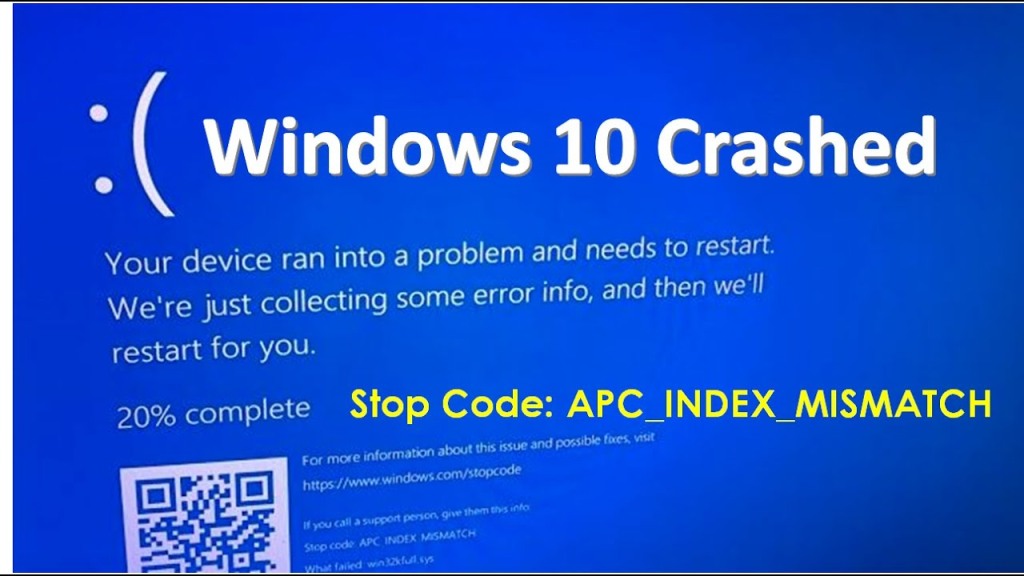
How to Fix APC_INDEX_MISMATCH BSOD on Windows 10?

 Mostly Blue Screen Error happens when the system is faced with something it doesn’t know how to process. So it shuts itself down to stop any damage, displaying a Blue Screen with Error code APC_INDEX_MISMATCH. An unsuitable, outdated device driver, damaged system files or registry database, memory Error, unsupportable third-party app installation or virus, malware infection, etc., cause these blue Screen errors. Numerous users are reporting about this error and ask for possible solutions. If you are getting the same error, here are some useful tips for dealing with this annoying error.

Install Newest Windows Updates

To install the newest Windows updates, follow these on-screen instructions mentioned below.

  1. Please navigate to the Settings app on your system and click on it.
  2. You should locate the ‘Update & Security’ section and select it.
  3. Then reach the ‘Windows update’ section and click on the ‘Check for updates’ button.
  4. Now, install the newest version of Windows.

Update Device Drivers through Device Manager

To update device drivers through Device Manager, follow these on-screen instructions mentioned below.

  1. Navigate to the Windows Search panel on your system.
  2. Thereafter, input ‘device manager’ into it and hit the Enter key to launch the Device Manager.
  3. You should check for the device drivers that are ticked. In case no one contains a tick, then attempt to update the graphics card driver in the first place.
  4. Go to the driver and right-click on it, then choose Update Driver.
  5. In case you still face any issues, you can attempt updating another device driver manually or download a driver update tool.

Check for Files Problems

To check for the file problems, follow these on-screen instructions mentioned below.

  1. Hit the Windows icon to open the Search bar.
  2. Thereafter, insert ‘cmd’ into it and hit the Enter key to launch the Command Prompt.
  3. Once you see it, right-click on it, then pick Run as administrator.
  4. You should input ‘sfc /scannow’ into it and hit the Enter key.
  5. Now, allow the PC to check for any files damaged or affected.

Remove the DisplayLink Driver

To remove the DisplayLink driver, follow these on-screen instructions mentioned below.

  1. To open the Windows Settings app, hold the Win, and I buttons combination over the keyboard.
  2. You should reach the left panel and select the ‘Programs and Features’ option.
  3. Then locate the ‘DisplayLink Core’ program and select it.
  4. Later, click on the Uninstall button.
  5. Now, locate the ‘DisplayLink Installation Cleaner’ software and then download it.
  6. Finally, perform the utility to complete the deletion and restart the PC.

Turn off Realtek HD Audio Manager

To turn off Realtek HD Audio Manager, follow these on-screen instructions mentioned below.

  1. Firstly, reboot the system a sometimes before the Automatic Repair begins.
  2. Once begin the repair procedure of Windows, hit the Troubleshoot option.
  3. You should select ‘Advanced options’ then choose Startup Settings.
  4. Later, hit the Restart button.
  5. Once reboot the system, hold the 5 or F5 keys to choose the ‘Safe Mode with networking’ option.
  6. After booting the PC into the Safe Mode, hold the ‘Ctrl + Alt + Del’ buttons simultaneously on the keyboard to launch the Task Manager.
  7. Later, invoke the Startup tab then find the ‘Realtek HD Audio Manager’ option.
  8. Once you get it, right-click on it, then choose the ‘Disable’ button.
  9. Finally, shut the Task Manager screen and attempt to restart the system.

Source:https://officecomsetupp.souqbel.com/how-to-fix-apc_index_mismatch-bsod-on-windows-10/

Keychron Q1 Review: A 75% Mechanical Keyboard

 Keychron Q1 is a mechanical keyboard that is one of the great keyboards for both Windows and Mac devices. More keyboard-making companies are stepping into the Mechanical keyboard field. They are dropping the price for fully featured boards. You can also get the body of the keyboard and add your switches and keycaps.

Design & Build

The Keychron Q1 weighs about 1.6 Kg. The build quality and finish are impeccable. You will not get scratches or dents easily. It is made up of an Aluminium body. The surface of the keyboard is smooth, and it has rounded edges.

The keycaps quality is good considering the extra cost. You will not get any branding on the Keyboard. On the bottom of the keyboard, you will get four rubber dots as keyboard feet. The keyboard also has a USB switch and button to switch between Windows and Mac layout. It also has a considerable amount of flexibility.

The keyboard frames have a metallic ring sound. It helps the keyboard to create a great sound. The keyboard can be used by gamers or programmers. You will not get any issues with the Keychron Q1 keyboard.

Keycaps

The Keychron Q1 comes with a fully assembled kit for an additional $20 from the body of the keyboard variant. You will get the plus switches. The keycaps present on the keyboard are better in every way. They are ABS along with the double shot. The double shot quality is overall nice and precise.

The keyboard does not have shine-through keycaps. Sometimes, you might not even feel the great RGB lights. Users will also get zero flex with some combination of keycaps and switches. You can also get more hollow sound or more flexibility. You can customize a lot of things. It comes down to user preferences.

Switches

The keyboard comes with Gateron Phantom Switches. You can choose between Blue, Brown, and Red switches. The housing color also matches the stem. They are good and will not lose over time. It is better than the dry switches. It also helps you to glide between keycaps.

The keyboard also comes with Gateron screw-in stabilizers. The key sounds are great because of it.

LEDs

The LEDs can be changed with the keys. The controls can be changed in the settings. It has a bunch of preset animations. Users can change the Speed, Brightness, and Hue of the LEDs. If you are using the red switches, then any color will look bad apart from red and white. You can also try different colors of switches.

Users can also turn on or off LEDs with the settings on the keyboard. The LEDs look great on the keyboard. It will also provide you with a nice and premium look. In short, it works as expected.

The RGB LED in the bottom will shine up to the switch cutout. LED lights will have a slight tint for your switches. You will get different colored effects.

VIA Support

The VIA works out of the keyboard. You can change all keys to whatever you want on multiple layers. However, it might not be useful for many people because it is a 75% mechanical keyboard. On the other hand, customizability is always great to have. You can also change it anytime you want.

Users can also rearrange the right column. It depends upon which keycaps can fit there. You can switch the Windows key with the Alt key.

Price

The Keychron Q1 keyboard will cost you about $170. You will get keycaps, switch pullers, the keyboard, coiled cable with connectors, screws, replacement keycaps for Mac, and additional foam strips. Users can also get an added wood rest.

You will get a lot of options to choose between different price segments. Users can check the official website to get more details on the price segments. You can configure the Keychron Q1 keyboard based on your preference.

Conclusion

Keychron Q1 is a great mechanical keyboard. It also lowers the price segment for big brand premium keyboards. You might get the hollowness of the sound sometimes. The build material is Aluminium, and other Gasket keyboards have plastic bodies in similar price segments. You will have to pay an extra few dollars to get the attachments for the keyboard.

Users will also get numerous color options to customize the Keychron Q1 keyboard. On the website, you can choose between a lot of keycaps options for your keyboard. However, you will have to pay a few extra dollars for the customization.

Source:https://ijstartcan0n.codemyrokulink.com/keychron-q1-review-a-75-mechanical-keyboard/

5 Alexa Games to Enjoy with Your Family

  As it turns out,  Alexa  can do more than just create routines, run your smartphone, set reminders, and play songs. Your Alexa can be the ...