Showing posts with label Windows 10. Show all posts

Xbox Game Pass Ultimate: Everything You Need to Know About

 It is a new and improved game pass. You will get over 100 titles per month that you can play on Xbox One, Xbox series X, and PC. You can also play it on your phone. It contains first-party games. However, they also edit third-party titles. You also have the option to choose between the normal tier, which includes PC or Console. Any Xbox console you own comes under the Console section.

Console Pass

For the Console, you can get it for $9.99 per month. It will renew automatically. If you do not want to go on, then you can also cancel your subscription, at any time. You can also join on Xbox or Amazon, or the Xbox game store. It will get you access to 100 plus Console games. You will also get newly added games all the time. You will also get discounts and deals.

PC Pass

It will cost you about $10 per month. You can get all the services like Console pass. In other words, you can access games for PC, and various discounts. However, it is slightly different from the Console pass. Some games are not available for the PC version, and some games are PC exclusive only.

If you get the subscription for the PC then you will also get the EA subscription service automatically. As a result, you can play tons of EA games.

Ultimate Pass

If you love gaming on both the PC and Console, then this service is great for you. It gives you a game pass on the Xbox console as well as on PC. You will additionally get Xbox live Gold. In other words, you can play it online with your friends and chat with them.

Games with the Gold service are the most important games. You will get newly added games on the Xbox Gold service. It will cost you $14.99 per month.

Sign-Up

If you sign up for this service, then you will have to pay $1 for the first month. This offer is for promotion only. You can play and try the service, and if you like it, then you can keep the subscription. You will be able to play on your console and PC.

Browse By Category

You can browse the games by category. It also includes Platformer, Classics, Racing & Flying, Indies, Shooter, Fighting, Action & Adventure, and Family & Kids. Some of these categories are for PC only.

Xcloud

You can also play these games on Xcloud. You will only need a supported device. In other words, you can play it on any Windows tablet or Android smartphone. You can play games with the game pass application.

Game Pass Page

You can see the benefits of your Xbox pass in this section. This section will show you the featured games, perks, and deals. You can also search for game titles. It also has picks based on your gameplay. It will also suggest new games to you. There are a lot of different sections, which include the Most popular, EA games, Gold Games, and much more.

Conclusion

Xbox Ultimate Game Pass gives you services like Game pass console, game pass PC, EA play, Xbox Live Gold, as well as discounts and offers. Microsoft is on top of providing gaming services.

Source:https://supportbrother.linktvroku.com/xbox-game-pass-ultimate-everything-you-need-to-know-about/

Windows 10 Store Won’t Open: Here are the Fixes

 Windows Store offers you a huge number of needed applications on your Windows system. But still, numerous users are complaining that Windows Store is unable to run on Windows 10. So, here are some instant solutions to repair this issue.

Reset the Windows Store Caches via the Command Prompt

To reset the Windows Store caches via Command Prompt, follow these on-screen step by step instructions mentioned below:

  1. First and foremost, launch the Command Prompt by selecting the Windows icon, and right-click on it, then choose the Command Prompt (Admin) option.
  2. Thereafter, input “wsreset.exe” into it and press the Enter button to perform. It would remove the Windows Store’s cache.
  3. Once you have done, tick the Store app again to check whether it operates or not.

Sign Up for the Windows Store

To sign up for the Windows Store, follow these on-screen step by step instructions mentioned below:

  1. At first, launch the PowerShell app by browsing for it via Cortana and launch it as administrator.
  2. After that, perform the following command to sign up for the Windows Store app again.
  3. Then paste the command and hit the Enter button over the keyboard to run and sign-up the Store once again: powershell -ExecutionPolicy Unrestricted Add-AppxPackage -DisableDevelopmentMode -Register $Env:SystemRoot\WinStore\AppxManifest.xml
  4. Now, relaunch the Windows Store to check if it operates or not.

Reset and Sign up for the App Again

To reset and sign up the app again, follow these on-screen step by step instructions mentioned below:

  1. Use Win and S shortcut keys simultaneously on the keyboard to open the Search bar.
  2. Then input ‘WSRESET’ into it and hit the Enter key.
  3. Once you get the ‘WSRESET’ app in the result, right-click on it, then pick the ‘Run as Administrator’ option.
  4. After completing the procedure, check whether the AppXManifest problem is fixed.
  5. Otherwise, select Windows and right-click on it, then pick the PowerShell (Admin) option.
  6. You should run the perform the pursuing in the PowerShell: Set-ExecutionPolicy Unrestricted
  7. Later, once asked to, hit the ‘Y’ button and perform the pursuing: “Get-AppXPackage -AllUsers | Foreach {Add-AppxPackage -DisableDevelopmentMode -Register “$($_.InstallLocation)\AppXManifest.xml”}”
  8. You have to restart the system and then check the issue.
  9. Otherwise then check whether performing in the PowerShell (Admin) solves the AppXManifest problem: “Get-AppXPackage -AllUsers |Where-Object {$_.InstallLocation -like “*SystemApps*”} | Foreach {Add-AppxPackage -DisableDevelopmentMode -Register “$($_.InstallLocation)\AppXManifest.xml”}”

Update the Windows to the Newest Release

To update the Windows to the newest release, follow these on-screen step by step instructions mentioned below:

  1. You can update the PC’s Windows manually and check the issue.
  2. Otherwise, go to the download page of Windows 10 via browser and hit the ‘Update Now’ option to download the update file.
  3. Once downloaded the file, run the downloaded Update Assistant with administrator privileges, then pursue the pop-up to finish its process.
  4. After finishing, restart the system and check whether the issue is solved or not.
  5. In case the issue continues, go to the ‘Microsoft Update Catalogue’ site and browse for the newest KB updates for the PC.
  6. Finally, download the available KB updates to the PC and install them to check whether that fixes the problem.

Source:https://25digitmcafeeactivationcode.linkmyr0ku.com/windows-10-store-wont-open-here-are-the-fixes/


Steam Games Won’t Launch on Windows 10: Here Are the Fixes

 Windows 10 is one of the best gamer-friendly OS given by Microsoft. It offers the most amazing features such as recording, game streaming, and an excellent Xbox One application. However, some Windows 10 users are complaining that the Steam games will not run on their system. If you encounter exact trouble, follow the instructions provided below.

Validate the Integrity of Each Game File

To validate the integrity of each game file, pursue these on-screen step by step directions given below:

  1. First and foremost, go to Steam, then launch it on the device.
  2. Thereafter, reach the Library option and select the Properties option via the menu.
  3. You should click on the ‘Local files’ option and then hit the ‘Verify integrity of game files’ option.
  4. Now, you have to wait until the procedure is finished and then reboot the Steam.

Roll Back Windows

To roll back the Windows, pursue these on-screen step by step directions given below:

  1. Launch the Settings application using the Win, and I shortcut keys simultaneously over the keyboard.
  2. After that, reach the ‘Update & security’ option and click on it.
  3. You should reach the Recovery button via the left panel and click on it.
  4. Then, choose the ‘Get Started’ option in the ‘Go back to the previous version of Windows 10’ section.
  5. Later, choose the reason for going back to the earlier build and hit the Next button.
  6. You will be provided to download the newest updates. Hit the ‘No, thanks’ option.
  7. Later, hit the Next button to proceed.
  8. Finally, select the Next button again and choose the ‘Go back to the earlier build’ option.

Perform the Game as Administrator

To perform the game as administrator, pursue these on-screen step by step directions given below:

  1. Navigate to the Steam Library and launch it on your device.
  2. Then, find your desired game you would like to perform.
  3. After that, choose the game title, right-click on it, and then choose the Properties option.
  4. Go to the Local Files button and click on it.
  5. Thereafter, reach the ‘Browse Local Files’ and click on it.
  6. You should locate your game executable, right-click on it then pick the Properties option.
  7. Later, go to the Compatibility button, click on it, and then tick the ‘Run this program as Administrator’ box.
  8. Finally, apply the changes and attempt to perform the game.

Perform Games in the Compatibility Mode

To perform games in the compatibility mode, pursue these on-screen step by step directions given below:

  1. First, reach the Steam Library and launch it on your device.
  2. Then, find the game you would like to perform.
  3. Thereafter, select the game title, and right click on it then pick the Properties option.
  4. You should reach the Local Files option and click on it.
  5. Go to the ‘Browse Local Files’ option and click it.
  6. Later, locate the game executable, and right-click on it then pick the Properties option.
  7. You have to choose the Compatibility button and click on it.
  8. Then tick the ‘Run this program in compatibility mode for’ box.
  9. Now, select the OS and apply the changes.

Relocate the Steam Client

To relocate the Steam client, pursue these on-screen step by step directions given below:

  1. At first, shut the Steam client on your device.
  2. Then, reach the folder Steam installation and find the folder you wish to move.
  3. You should remove each folder and file except the ‘SteamApps & User data folders’ and Steam.exe.
  4. Later, copy the entire Steam folder to the standard location. Normally, it’s the pursuing path: C: Program FilesSteam
  5. Now, open the Steam and sign in to the account.

Source:https://ijstartcanonmanual.linkmyr0ku.com/steam-games-wont-launch-on-windows-10-here-are-the-fixes/

Here’s How You Can Split the Screen on Your Windows 10 Computer

 Windows 10 has always proved to be a great operating system that enables its users to do multitasking on their devices. Microsoft has added several great features in the Windows 10 operating system in order to make the computing tasks much easier and manageable for the users. All the Windows 10 users have the ability to customize the settings on their computer system as per their preferences. This is great to make your computing experience even more personalized. For instance, one can easily change the default font on their Windows 10 computer, and you can even change the background image and taskbar, start menu color on your Windows computer. Well, these are the common and easy tasks that anyone can perform on their Windows 10 computer. But, what if you want to split the screen on your Windows 10 computer? Can you do that?

These days, most modern operating systems come with various built-in features. And Windows 10 operating system also enables its users to split the screen on their computer to do multitasking. Do you know what you will need to do to split the screen on your Windows 10 computer? Do you want to know how to do so? If yes, then you will need to keep reading this post as here, you will be able to discover how you can perform this task.

Method to Split the Screen on a Windows 10 Computer

Splitting the screen on a Windows computer system can be really helpful for anyone. By enabling this feature, you will be able to see two or more windows side-by-side. If you are a professional computer user or a software developer, then working with one screen might not be enough for you. Windows 10 operating system makes it quite easier to split the screen on your computer system. To do so, you must follow some instructions. So, let’s see how you can split the screen on your Windows 10 computer system.

Steps to Split the Screen on a Windows 10 Computer

To split the screen on your Windows 10 computer, you will need to go through the below-mentioned instructions:

  • First of all, you will have to pick the program window that you would like to snap to one side of the screen. Click on the window title bar and drag it to one side of your computer’s screen until the mouse pointer touches the edge.
  • After this, you will be able to see the screen briefly flash. And there will be a light outline of where the selected window will appear on your screen. Now, you can release the mouse button.
  • And now, the window will be snapped to one side of the screen. And all the other program windows will appear on the other side of the screen.
  • Now, you will have to select one of the other program windows. Click on it, after which it will get to the other side of the screen.
  • And now, you should be able to see two windows side-by-side on your computer screen. By default, both windows will occupy 50% of your computer screen. You will be able to adjust that by putting the mouse pointer between the windows. And after this, the pointer will turn into a two-headed row. Click and drag the windows to change their width.

So, this is how any Windows 10 user can split the screen on their computer system. You can also split the screen between three or four program windows. To know how to do so, you can check out the other related guide by going through our official website.

Source:https://123hpsetup.linkmyr0ku.com/heres-how-you-can-split-the-screen-on-your-windows-10-computer/

Fixed: NMI_HARDWARE_FAILURE BSOD Error on Windows 10

 Whenever you find issues in your Windows 10 operating system, you need to fix the NMI_HARDWARE_FAILURE BSOD Windows 10 error. NMI hardware failure comes under Blue Screen of Death Errors and causes many problems on Windows 10. Whenever your system appears with this issue, it means your display has a blue screen; its value is 0x00000080. So, here are the steps to fix this issue.

Restrict Windows from Restarting Automatically to Fix the Windows 10 Error

To restrict Windows from rebooting automatically, pursue the whole guidelines provided below:

  1. Hold the Win + D keys altogether on the keyboard.
  2. Then reach the PC and right-click on it.
  3. You should click on the Properties option.
  4. Choose Advanced system properties.
  5. The System Properties wizard will come. Select the Advanced button.
  6. Hover over to the Startup and Recovery segment and press the Settings option.
  7. Go to the System failure region. After that, untick the box of ‘Automatically restart.’
  8. Now, choose the OK tab at the bottom and apply these changes.

Run Full PC Scanning in Windows Security to Fix the Windows 10 Error

To perform complete PC scanning in Windows security, pursue the whole guidelines provided below:

  1. Hold the Win + S keys altogether on the keyboard to open the Taskbar.
  2. After that, enter security into it.
  3. Choose it and launch on a separate screen.
  4. You should click on the Virus and threat protection.
  5. Select the Scan options URL and unfold all the ways.
  6. Check the radio tab allocated for Full Scan from procedures.
  7. Continue forward and choose the Scan now option to start identification.
  8. Once you end the search, you should view the outcome in front. In case you see any malware, then click on the Clean threats option situated here.
  9. Now, on the following screen, among three choices, choose the Remove first option and then select Start actions to dismiss all these viruses.

Make Every Driver Updated in the Windows Device Manager to Fix the Windows 10 Error

To make each driver updated in the Windows device manager, pursue the whole guidelines provided below:

  1. Go to the Start Menu and right-click on it.
  2. After appearing in the menu, choose the Run option.
  3. Reach the text section, enter ‘devmgmt.msc’, then press the Enter button.
  4. It will launch the Device Manager instantly.
  5. Choose that very device and open it in the procedure.
  6. Navigate to the driver and right-click on it, and then choose the Update driver option.
  7. Apply the same process for every driver and update them.

Repair Every Memory Problem Including Damage Location in RAM to Fix the Windows 10 Error

To repair each memory issue, including damage location in RAM, pursue the whole guidelines provided below:

  1. Press Win and I keys altogether on the keyboard to launch the Settings application.
  2. In the case of the application UI, there will be a blank text area situated here.
  3. Enter ‘Memory’ into the box and wait for outcomes to be loaded.
  4. After that, select ‘Diagnose your computer’s memory problems.’
  5. In the parallel appearance, Windows Memory Diagnostic will be brought up.
  6. Select the ‘Restart now and look for issues.
  7. Instantly, Windows will be ready for the first round of restarting procedures.
  8. After powering up the next, a blue color window will bring up. This will identify the memory problem in the entire PC.
  9. In case the progress hits 100 percent, Windows will be prepared to reboot for the second time.
  10. You are capable of checking the outcome of diagnosis in the notification section of System Tray.

Run Installation of All Cumulative Patches to Fix the Windows 10 Error

To install all cumulative patches, pursue the whole guidelines provided below:

  1. Hold the Windows button to spread up the Start menu.
  2. You should click on the Gear button.
  3. Select the Update and Security tile.
  4. In case the next screen shows in the view, select the Windows Update.
  5. Go to the next right-hand side and click on the Check for updates.
  6. The accumulated patches are present with the option of Download under them.
  7. Click on the Download and all Windows to start the procedure.
  8. When the downloading finishes, the installation process will begin by itself.
  9. Now, in case the Windows pop-up for rebooting, cooperate with the system.

Make the Proper Use of Windows Blue Screen Troubleshooter to Fix the Windows 10 Error

To make the correct use is Windows blue screen troubleshooter, pursue the whole guidelines provided below:

  1. Open the Windows Settings application on your system.
  2. Go to the home screen, choose the Update and Security option.
  3. After loading the extra settings screen, select the Troubleshoot option situated on the left-hand side.
  4. Go straight to the next right-hand side and reach out to the Blue Screen there.
  5. In the continuing, choose it to open in the panel.
  6. Now, click on the Run the Troubleshooter option.

Primary Treatment for Every Issue-Boot in Safe Mode to Fix the Windows 10 Error

To apply primary treatment for each issue-boot in safe mode, pursue the whole guidelines provided below:

  1. Hold the Win + R keys together on your keyboard.
  2. Enter ‘msconfig’ into the Run dialogue section.
  3. After pressing the Enter button, the System Configuration screen will be shown on the screen.
  4. Go to the Boot button and go to the second half in the screen read as Boot options.
  5. Tick, the checkbox of Safe Boot, start all the greyed-out choices here.
  6. Then select the radio tab before Minimal and proceed to drag downward.
  7. Click on the Apply button and then select the OK tab to apply the changes.
  8. Shut the wizard and launch the Start menu by clicking the Windows button.
  9. You should reboot the system.
  10. On running the restarting procedure, hit the F8 button constantly unless the next screen comes in.
  11. Later, choose the Safe mode option situated beneath the Advanced boot options region.
  12. Now, access the Safe Mode on the next move.

These types of errors may damage your system in many ways. So, knowing the fixes and getting the issues resolved is essential.

Source:https://mcafeecomactivate.linkmyroku.com/fixed-nmi_hardware_failure-bsod-error-on-windows-10/

How to Reset the Administrator Password in Windows 10

 Are you unable to sign in to your Windows administrator account because you forgot what the password was? Let’s face it, we all struggle with these kinds of problematic situations at least once in our life. We all own so many accounts these days that sometimes it becomes pretty difficult to remember all the information.

And losing any website password might not be a big deal because we can recover them using the respective email addresses. But forgetting our device’s password can be pretty scary and frustrating. Losing your computer’s login password means you cannot access your important data stored on the device.

And there is also a chance that you lose everything saved on your computer. And obviously, no one would want that. So, do you know how you can recover a Windows 10 computer administrator account password?

Have you also forgotten your Windows 10 administrator account password and are now facing issues with resetting it? If that is the situation, you don’t need to worry now. You can easily reset the administrator password on your Windows 10 computer. To know the way to perform this task, you are advised to go through this entire post.

Here, we will provide you the method, following which you can reset your Windows 10 computer admin password with much ease. So, read this whole post to get to the technique.

Resetting the Administrator Password on a Windows 10 Computer

Restoring a Windows computer password can indeed be annoying for anyone, but at least it’s possible. There are multiple methods following which you can reset the administrator password on your Windows 10 computer with much ease.

Here, we will provide you with the three most straightforward techniques that include some simple steps to follow. You can reset the Windows administrator password with the Microsoft account. Or you can use the password reset disk for this purpose.

So, without any more wait, let’s see the methods you need to follow to reset your Windows 10 computer administrator password.

Method 1: Resetting the Admin Password on Windows 10 Using the Password Reset Disk

A password reset disk is a device (USB or CD) that allows you to re-access your computer if you have forgotten or lost the admin password. It is the simplest method that anyone can follow. So, here’s how you can reset the admin password using the password reset disk on a Windows 10 computer:

  • You will have to start the task by inserting the password reset disk in your Windows 10 CD drive.
  • When the sign-in screen shows up, you will need to enter any password that you remember. And then, click on the “Reset Password” option.
  • After this, you will be able to see the password reset wizard on your computer screen. Proceed further by selecting the reset disk, which is either your USB or CD.
  • And then, click on the “Next” button. You will now have to enter the new password in the provided text field. Confirm the password by re-entering it.
  • Lastly, go to the “Next” button placed at the bottom of the screen. And then click on the “Finish” option to complete the process.
  • And that’s it. Now you have successfully changed the Admin password on your Windows 10 computer.

Method 2: Resetting the Admin Password on Windows 10 by Accessing Microsoft Account

Here is the second method that you can follow to reset the admin passed on your Windows 10 computer. Follow the instructions mentioned below:

  • Firstly, you will have to navigate to the Microsoft Account reset page.
  • On reaching the next screen, you will be asked to enter your email address or phone number.
  • Proceed further by verifying your details, and then you will need to enter the new password for your Microsoft account.
  • At last, you will have to click on the “Next” button. Then sign in to your account to re-access your Windows 10 computer. That’s all.

Method 3: Reset the Windows 10 Admin Password by Enabling the Safe Mode

You can also reset the admin password on your Windows 10 computer by enabling the safe mode. Here’s how to do so:

  • First, press the power button on your computer. And then, click on the Restart button on the locked Windows 10 login screen. You will have to hold the “Shift” key while clicking on the Restart button.
  • Now, choose the option of “Troubleshoot” and then click on “Advanced Options>Startup Settings.”
  • Click on the “Restart” button again and press F4/F5/F6, after which your computer will go into safe mode.
  • At last, run the Command Prompt as an administrator. And then reset the admin password with command lines.
  • And that’s all you will have to do to reset the administrator password on your Windows 10 computer.

So, these are the three easy methods that you can use to change the admin password on your Windows 10 computer. Try the technique when you need to reset the password. And to get more information like this, take a tour of our official website.

Source:https://ijijstartcanonn.com/how-to-reset-the-administrator-password-in-windows-10/


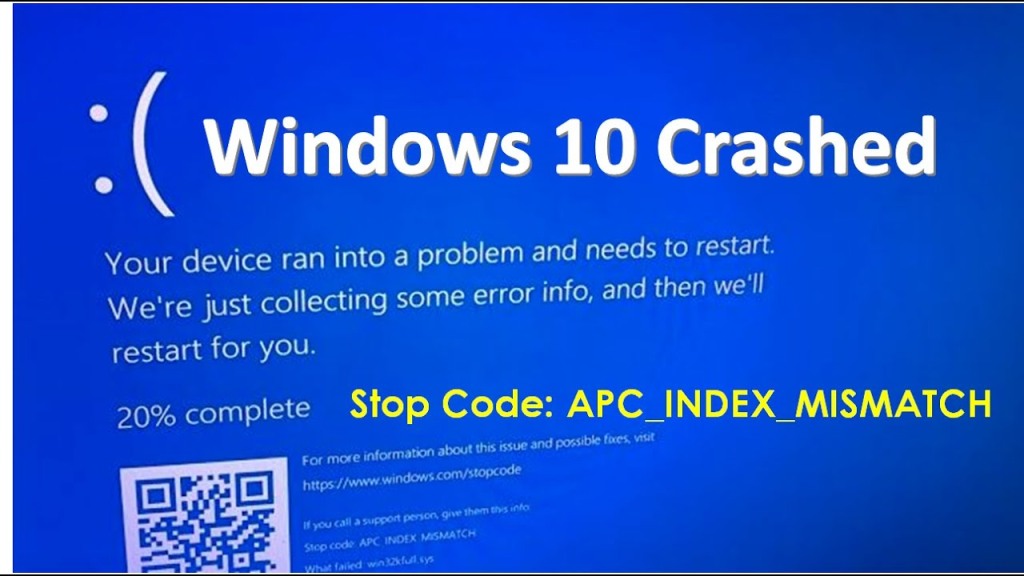
How to Fix APC_INDEX_MISMATCH BSOD on Windows 10?

 Mostly Blue Screen Error happens when the system is faced with something it doesn’t know how to process. So it shuts itself down to stop any damage, displaying a Blue Screen with Error code APC_INDEX_MISMATCH. An unsuitable, outdated device driver, damaged system files or registry database, memory Error, unsupportable third-party app installation or virus, malware infection, etc., cause these blue Screen errors. Numerous users are reporting about this error and ask for possible solutions. If you are getting the same error, here are some useful tips for dealing with this annoying error.

Install Newest Windows Updates

To install the newest Windows updates, follow these on-screen instructions mentioned below.

  1. Please navigate to the Settings app on your system and click on it.
  2. You should locate the ‘Update & Security’ section and select it.
  3. Then reach the ‘Windows update’ section and click on the ‘Check for updates’ button.
  4. Now, install the newest version of Windows.

Update Device Drivers through Device Manager

To update device drivers through Device Manager, follow these on-screen instructions mentioned below.

  1. Navigate to the Windows Search panel on your system.
  2. Thereafter, input ‘device manager’ into it and hit the Enter key to launch the Device Manager.
  3. You should check for the device drivers that are ticked. In case no one contains a tick, then attempt to update the graphics card driver in the first place.
  4. Go to the driver and right-click on it, then choose Update Driver.
  5. In case you still face any issues, you can attempt updating another device driver manually or download a driver update tool.

Check for Files Problems

To check for the file problems, follow these on-screen instructions mentioned below.

  1. Hit the Windows icon to open the Search bar.
  2. Thereafter, insert ‘cmd’ into it and hit the Enter key to launch the Command Prompt.
  3. Once you see it, right-click on it, then pick Run as administrator.
  4. You should input ‘sfc /scannow’ into it and hit the Enter key.
  5. Now, allow the PC to check for any files damaged or affected.

Remove the DisplayLink Driver

To remove the DisplayLink driver, follow these on-screen instructions mentioned below.

  1. To open the Windows Settings app, hold the Win, and I buttons combination over the keyboard.
  2. You should reach the left panel and select the ‘Programs and Features’ option.
  3. Then locate the ‘DisplayLink Core’ program and select it.
  4. Later, click on the Uninstall button.
  5. Now, locate the ‘DisplayLink Installation Cleaner’ software and then download it.
  6. Finally, perform the utility to complete the deletion and restart the PC.

Turn off Realtek HD Audio Manager

To turn off Realtek HD Audio Manager, follow these on-screen instructions mentioned below.

  1. Firstly, reboot the system a sometimes before the Automatic Repair begins.
  2. Once begin the repair procedure of Windows, hit the Troubleshoot option.
  3. You should select ‘Advanced options’ then choose Startup Settings.
  4. Later, hit the Restart button.
  5. Once reboot the system, hold the 5 or F5 keys to choose the ‘Safe Mode with networking’ option.
  6. After booting the PC into the Safe Mode, hold the ‘Ctrl + Alt + Del’ buttons simultaneously on the keyboard to launch the Task Manager.
  7. Later, invoke the Startup tab then find the ‘Realtek HD Audio Manager’ option.
  8. Once you get it, right-click on it, then choose the ‘Disable’ button.
  9. Finally, shut the Task Manager screen and attempt to restart the system.

Source:https://officecomsetupp.souqbel.com/how-to-fix-apc_index_mismatch-bsod-on-windows-10/

5 Alexa Games to Enjoy with Your Family

  As it turns out,  Alexa  can do more than just create routines, run your smartphone, set reminders, and play songs. Your Alexa can be the ...